Organizations Magazine
To view a list of all organizations registered in the system, information about organizations and their documents, you can use the journal “Organizations”, which is located in the block “Organization of trading procedures":
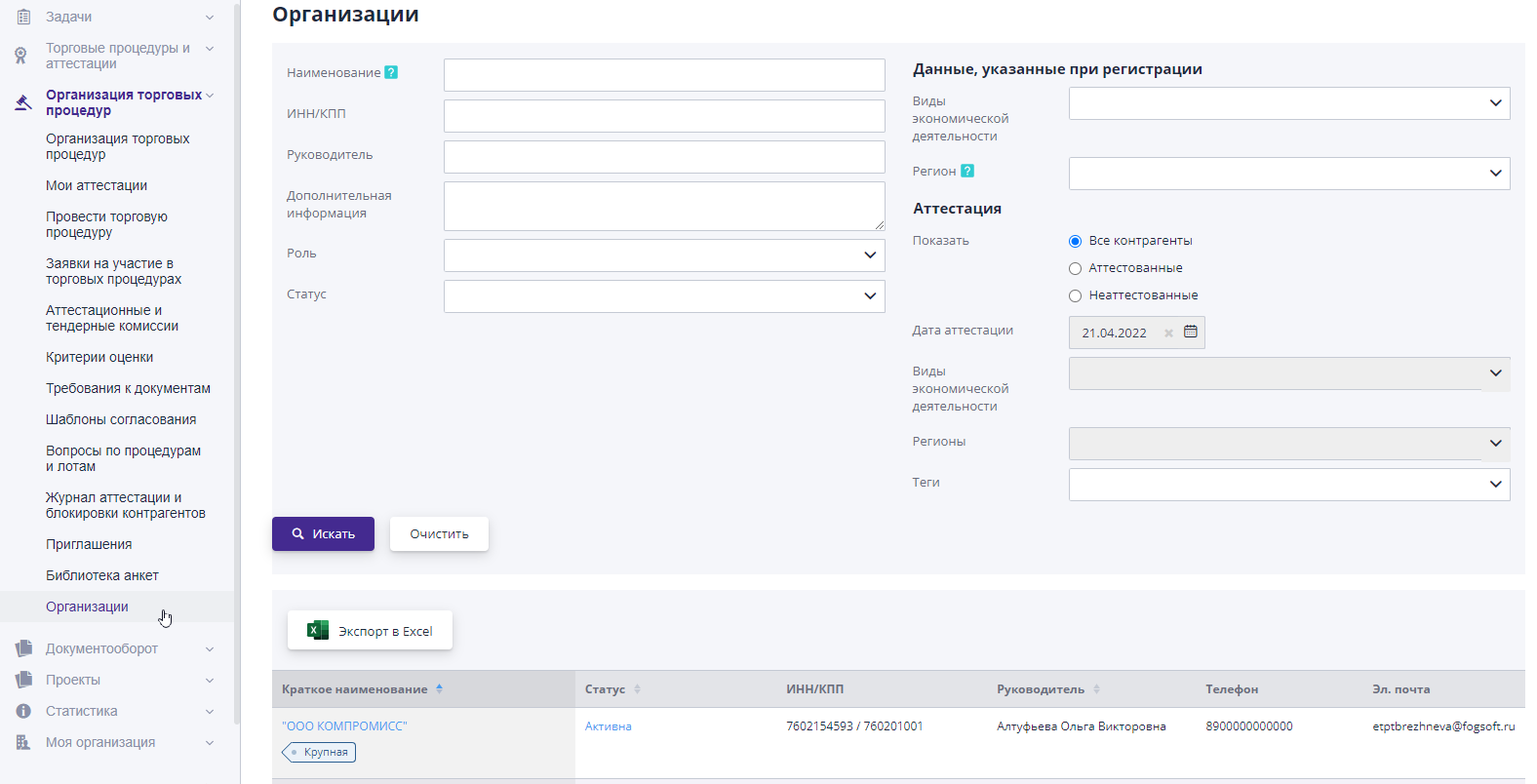
To search for a specific company, you can use search filters by log, specifying the necessary parameters.
To view information about the organization, you must follow the link in column "Short name".On the page that opens you can familiarize yourself with the organization’s data and attached documents.
“General information” tab on the counterparty page
On the “General Information” tab there is:
- General information filled in by the counterparty during registration or in the last approved request to change data.
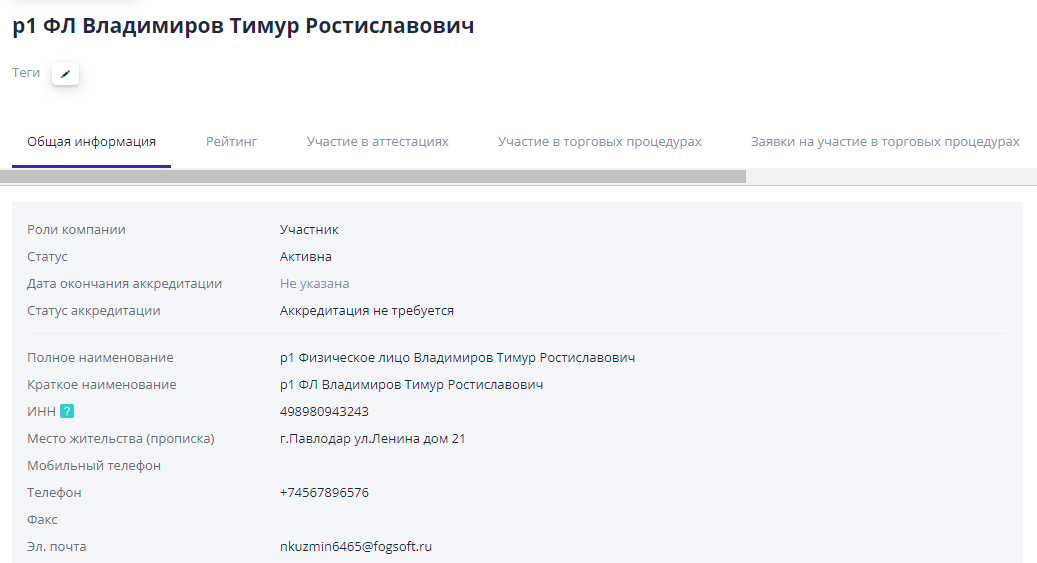
A “Tags” field has been added under the organization name, allowing you to combine companies and projects on any basis.On the magazine page “Organizations”, a search has been added using tags assigned to companies.
To add a tag, click on the pencil icon:

In the window that opens, specify the tag name, comment and save changes:
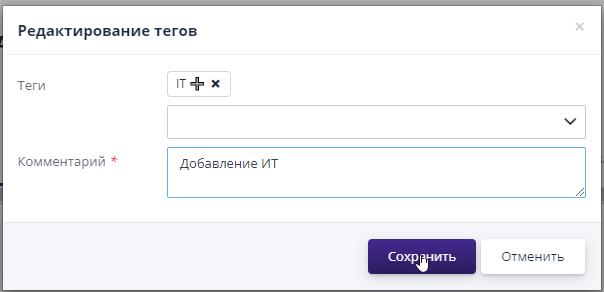
As a result, the assigned tag will be displayed on the organization page:

To edit or delete an existing tag, go to link in its name, make changes/delete and click on the button "Save".
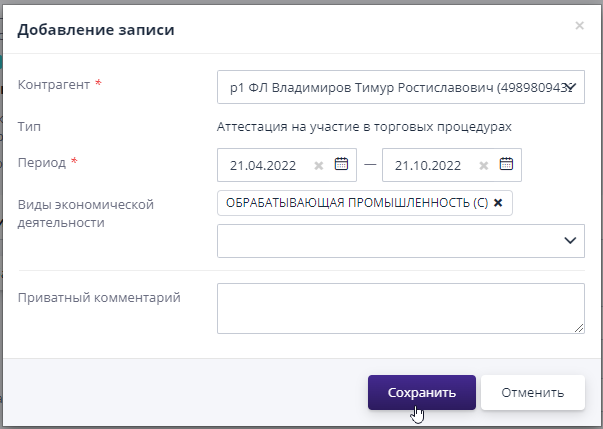
- The block “Certification and blocking of the counterparty” contains everything certifications of the organization obtained as a result of certification, and locks added by the organizer (if the system has locking functionality enabled counterparties).You can add a new entry by clicking on button "Add" and select "Certification for participation in trade procedures" or "Black list of participation in trading procedures":
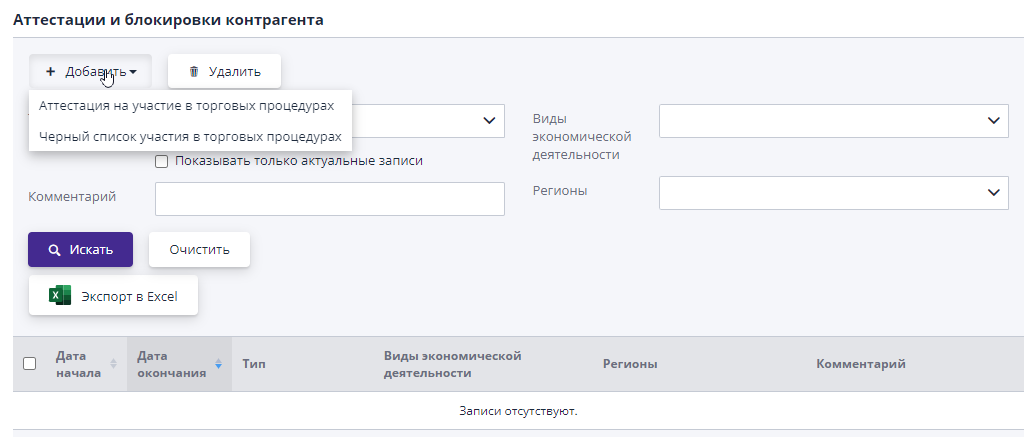
In case of adding certification for participation in trade procedures in in the window that appears, you must select the type of economic activity according to which the participant’s organization will be certified, and the time period in which which this certification will be active, and then click "Save":
- The “Supplier Ratings” block contains all the ratings given participant's organization and is displayed if the system has ratings functionality enabled.
Tab “Participation in trading procedures”
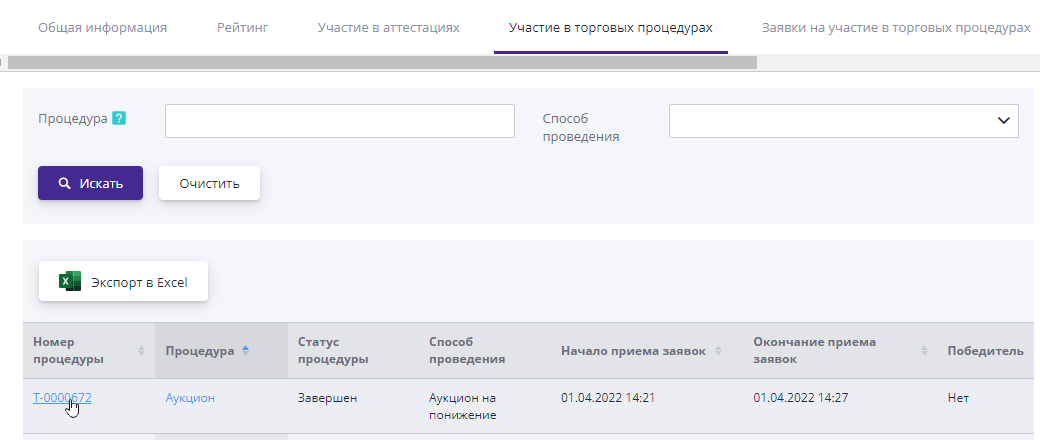
On the “Participation in trading procedures” tab you can view all procedures in which the organization was allowed to participate.To view procedures you can click on the link in the procedure number or in the subject procedures:
Tab “Application for participation in trading procedures”
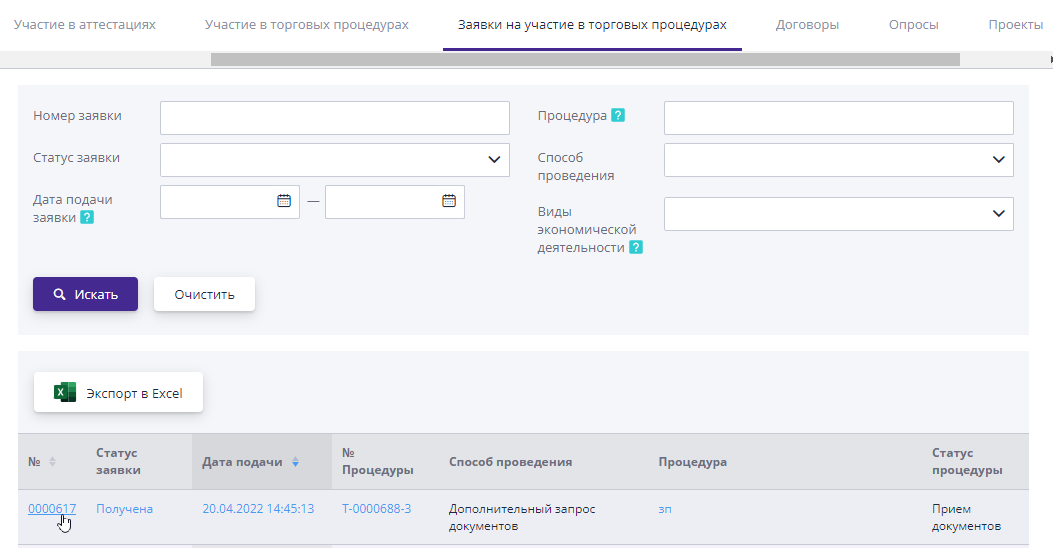
On the “Application for participation in trading procedures” tab you can view all applications submitted for participation in procedures from the participant’s organization. To view an application, you can click on the link in the number of the desired application:
Comment tab
If the system has comment functionality enabled, then In the “Comment” tab, you can view all previously left comments or add a new comment.
To add a comment, you must fill in the “Comment” field and click on the "Send" button:
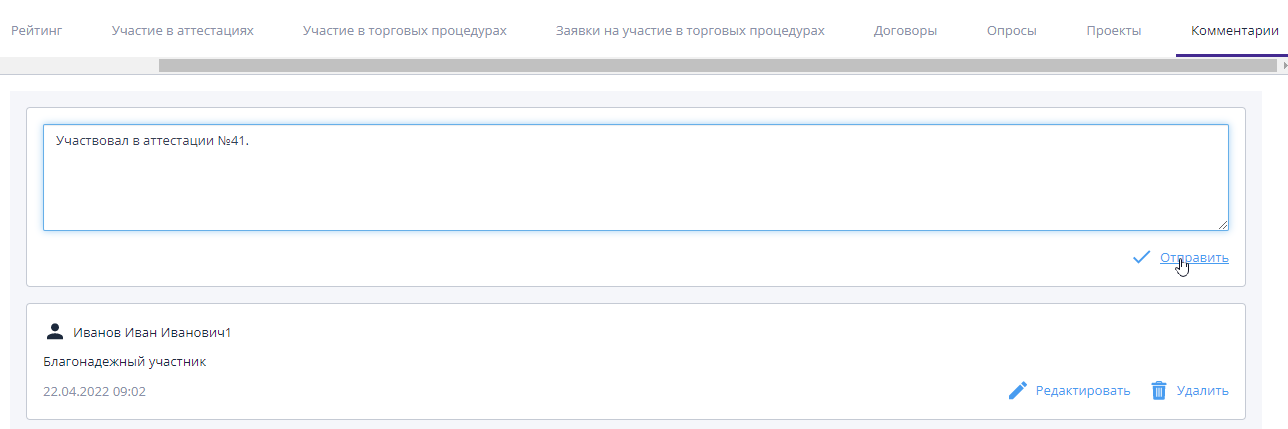
To edit an entry, click on the “Edit” button, to delete - “Delete”.